











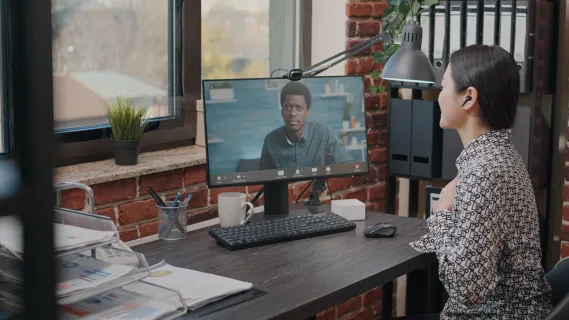
In 2026, hybrid work is no longer an alternative—it is the default. Imagine this: you are at home, perfectly prepared for a high-stakes pitch, and eager to make a lasting impression on a new client. But as soon as you turn on your MacBook, the built-in camera makes you look like you're calling from a witness protection program—grainy, poorly lit, and unrecognizable.
Whether you are leading a corporate pitch, conducting a telehealth consultation, or hosting a virtual seminar, your digital presence is your professional identity. Relying on a grainy, integrated laptop camera is no longer acceptable in a world where visual clarity equals credibility.
As technology evolves, the search for the best webcams for Zoom has shifted from simple 1080p resolution to advanced AI-driven optics, massive sensors, and dedicated NPU processing. In this comprehensive guide, we analyze the top-tier devices of 2026 to help you find the perfect match for your workspace.
Key Takeaways
- Sensor Size > Resolution: In 2026, the size of the optical sensor (e.g., 1/1.2-inch) is more critical for professional image quality and low-light performance than just having 4K resolution.
- On-Board AI (NPU): Top-tier devices now process auto-framing and background blur internally, reducing the strain on your computer's CPU during long calls.
- Specialized Solutions: Choosing the right camera depends on the scenario—Nearity V30S for team collaboration, Razer Kiyo Pro Ultra for executive-level solo video, and Insta360 Link 2 Pro for active presenters.
- Environment Matters: Even high-end hardware requires proper eye-level positioning, front-facing lighting, and a clean lens to achieve optimal results.
What Defines the Best Webcams for Zoom in 2026?
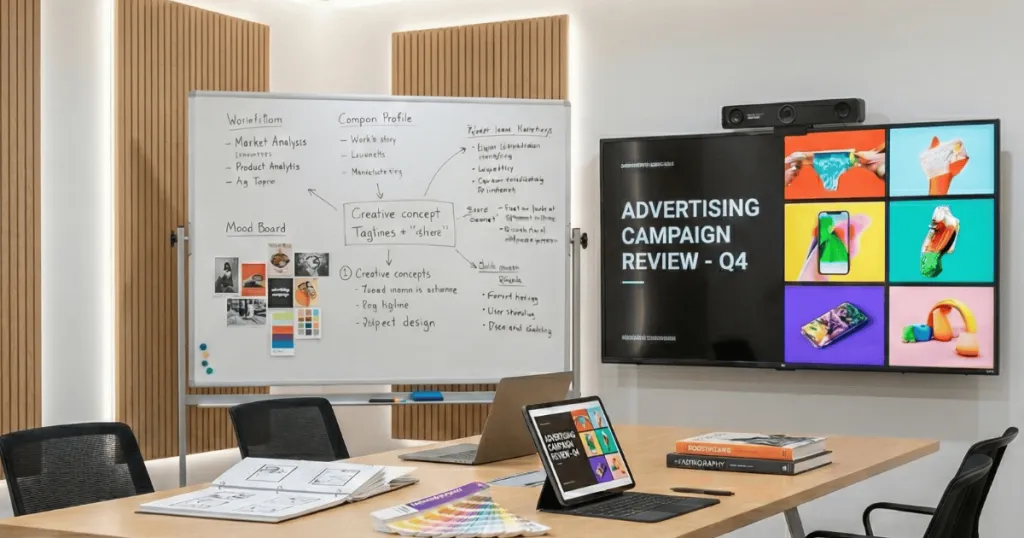
Before investing, it is crucial to understand the technical benchmarks that define professional-grade video in 2026:
- Large Optical Sensors: Resolution (4K) is secondary to sensor size. A 1/1.2-inch sensor captures more light, ensuring clear skin tones even in poorly lit home offices.
- On-Board AI Processing (NPU): Top webcams now handle background blur and auto-framing on the device itself, preventing your computer's CPU from overheating during long Zoom calls.
- Field of View (FOV) Versatility: While solo workers need a narrow 65°-78° FOV, collaborative teams often look for meeting owl alternatives that offer a 110°-120° wide-angle lens to capture everyone without the distortion or complexity of center-of-table cameras.
- Intelligent Audio Arrays: Dual MEMS microphones with Acoustic Echo Cancellation (AEC) are essential for crystal-clear voice pickup.
Best Webcams for Zoom in 2026: Top Picks Ranked by Scenario
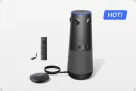
1. Best for Hybrid Teams & Huddle Rooms: Nearity V30S
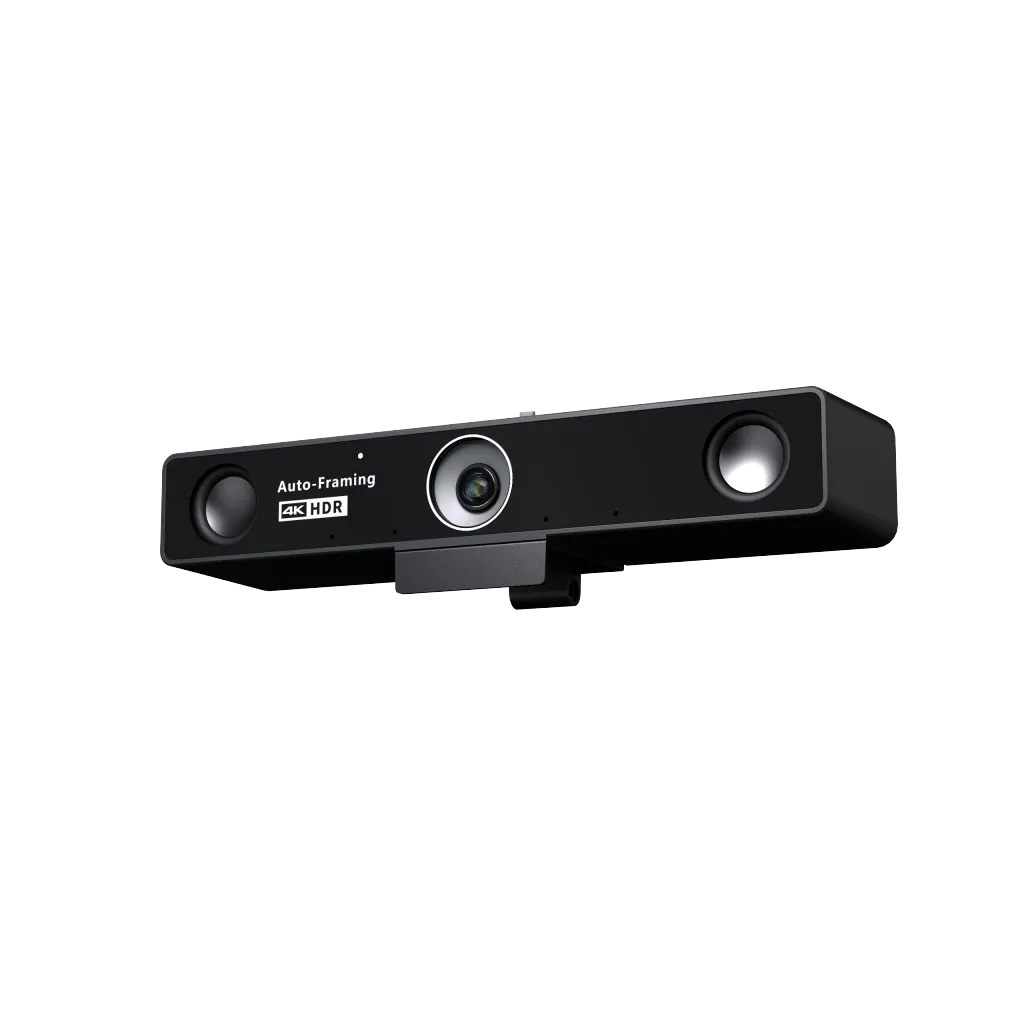
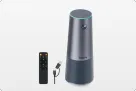
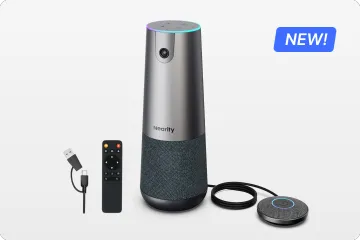
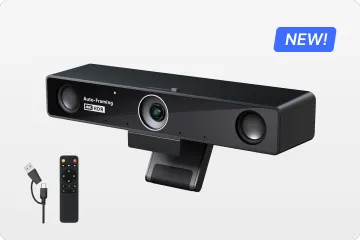
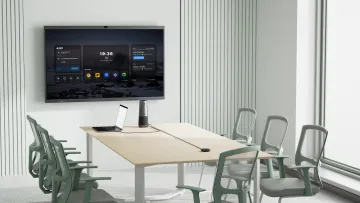
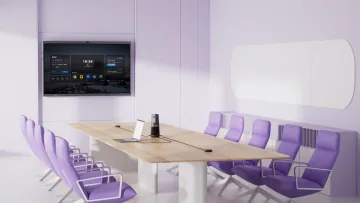
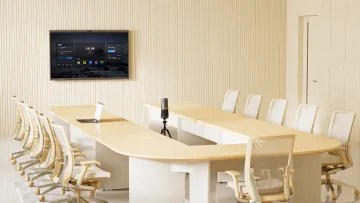
The Nearity V30S is a powerhouse designed specifically to eliminate the awkwardness of group calls where participants are forced to huddle around a single laptop. It combines enterprise-grade optics with a sophisticated audio array, making it the most seamless "all-in-one" solution for modern team collaboration.
- Solving the "Squeeze" Problem: Its 120° ultra-wide lens ensures that a team of 4-6 people fits naturally in the frame without any distorted "fisheye" edges.
- Eliminating Manual Adjustments: The AI Auto-Framing uses intelligent NPU tracking to keep the focus on the speakers, so you don't have to manually tilt or pan the camera during brainstorming sessions.
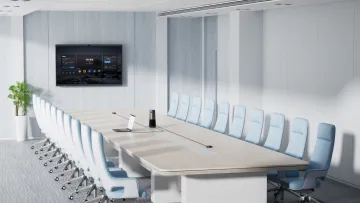
- Scaling for Larger Spaces: By supporting daisy-chained AM01 external mics, it solves the "can you hear me?" frustration in longer conference tables up to 10 meters.
2. Best for High-End Solo Professionals: Razer Kiyo Pro Ultra
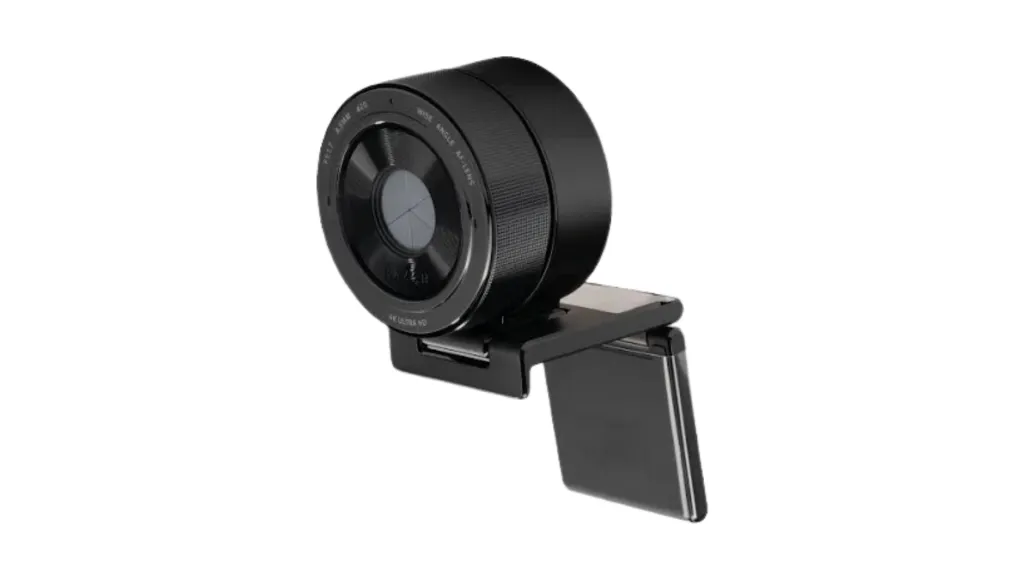
For executives and top-tier influencers, image quality is the ultimate differentiator. The Razer Kiyo Pro Ultra bridges the gap between a standard webcam and a professional mirrorless camera, providing a broadcast-quality image that commands authority and attention.
- Fixing Flat, Artificial Imagery: The massive 1/1.2-inch sensor creates true optical "bokeh," solving the problem of glitchy, fake-looking AI background blurs.
- Mastering Poor Office Lighting: It solves the issue of grainy video in dim home offices by absorbing significantly more light than standard sensors.
- Eliminating Motion Blur: High-speed uncompressed data transfer ensures that your gestures and expressions are captured with zero lag or artifacting.
3. Best for Dynamic Presenters: Insta360 Link 2 Pro
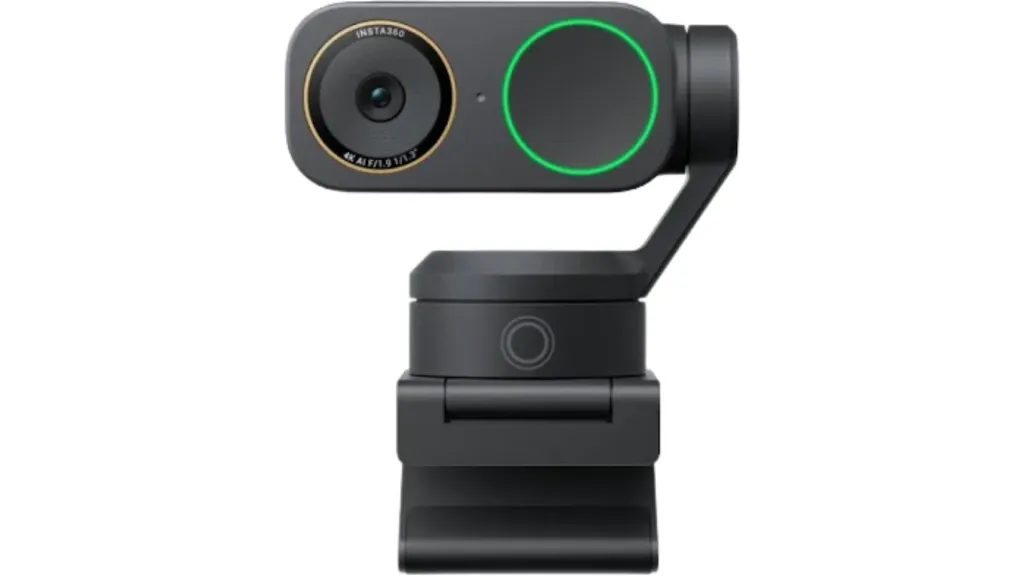
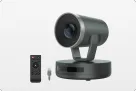
Static cameras are a major limitation for educators and active presenters who need to move around a room. The Insta360 Link 2 Pro acts as your personal camera crew, utilizing a physical 3-axis gimbal to maintain a perfect shot no matter where your presentation takes you.
- Solving the "Static Presenter" Constraint: The physical pan/tilt tracking ensures you stay centered while using a whiteboard or demonstrating products, without losing resolution through digital cropping.
- Ending Focus Struggles: Fast phase-detection autofocus (PDAF) solves the problem of blurry visuals when holding documents or objects close to the lens.
- Optimizing Whiteboard Clarity: Its dedicated Whiteboard Mode automatically enhances and crops your board, making remote learning far more legible for students.
4. Best Reliable Daily Driver: Logitech Brio 500
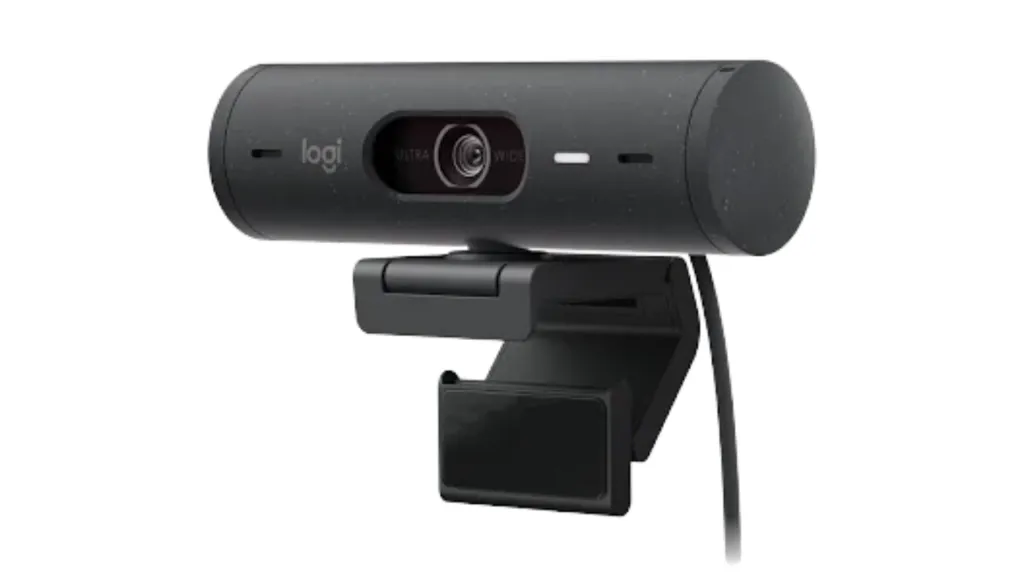
The Brio 500 is the ultimate "set it and forget it" tool for everyday remote workers who need to look professional without technical fuss. It focuses on the most common pain points of home office setups—lighting and document sharing.
- Correcting Backlight Silhouettes: RightLight 4 technology solves the common issue of being a dark silhouette when sitting in front of a bright window.
- Streamlining Desk Sharing: The innovative "Show Mode" allows you to tilt the camera down to share sketches or notes instantly, solving the need for a second document camera.
- Ensuring Guaranteed Privacy: The integrated physical dial provides a 100% psychological and physical guarantee of privacy when the meeting ends.
5. Best Value for Students: Anker PowerConf C200
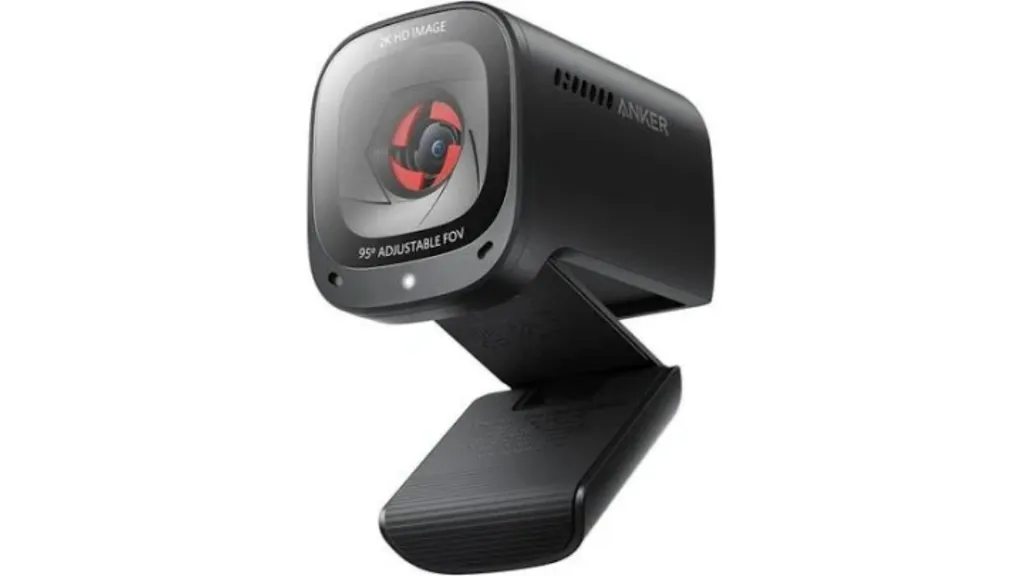
The Anker PowerConf C200 proves that looking professional doesn't have to cost a fortune. It targets students and budget-conscious workers who need a significant jump in quality over their laptop's internal hardware.
- Escaping the 720p "Witness Protection" Look: 2K resolution solves the lack of clarity found in standard laptop cameras, providing a much sharper professional image.
- Customizing Background Exposure: The AnkerWork software allows you to choose between 65°, 78°, or 95° FOV, solving the problem of showing too much (or too little) of your dorm or bedroom.
- Clearing Up Voice Muffles: Dual omnidirectional mics solve the tinny, muffled audio typical of budget setups, ensuring your contributions are heard clearly.
Decision Matrix: Choosing Your Best Webcam for Zoom
- Meeting alone in a messy room? Choose a webcam with a narrow, adjustable FOV (65°-78°) like the Logitech Brio 500.
- Collaborating with a team of 3-5? When evaluating meeting room solutions for small groups, the Nearity V30S is the undisputed choice, offering the wide-angle coverage and AI framing necessary for group dynamics.
- Presenting on a whiteboard? Opt for the gimbal-tracking capabilities of the Insta360 Link 2 Pro.
Pro Tips: Getting the Most Out of Your Investment
Owning one of the best webcams for Zoom meetings is the first step, but hardware alone doesn't guarantee a professional look. Based on years of remote work consulting, here are the critical factors to consider during setup:
- Lighting is Everything: Even a 4K sensor needs light to perform. Ensure your primary light source is in front of you (like a ring light or a window), never behind you.
- Eye-Level Positioning: Mount your webcam at eye level to mimic natural face-to-face conversation. Looking down at a camera creates an unprofessional "looming" effect.
- Bandwidth Management: If you are using a 4K webcam like the Nearity V30S, ensure your upload speed is at least 10-15 Mbps to prevent the video from lagging or stuttering during high-definition streaming.
- Keep the Lens Clean: It sounds simple, but fingerprints on the lens are the #1 cause of "hazy" or "dream-like" video quality. Use a microfiber cloth regularly.
Summary: Professional video is a combination of the right hardware and environmental control. By aligning your lighting, positioning, and network stability with a high-performance device, you transform a standard video call into a powerful professional engagement.
Frequently Asked Questions (FAQ)
1. Do I really need a 4K webcam for Zoom meetings?
While Zoom supports 1080p for most Pro, Business, and Enterprise accounts, it often compresses 4K video to save bandwidth. However, a 4K camera like the Nearity V30S is still highly beneficial because it uses a superior sensor that performs better in low light, and it allows for "lossless" digital zooming, ensuring you look sharp even when the camera crops in on your face.
2. What is AI Auto-Framing and why is it useful?
AI Auto-Framing uses software to detect faces and bodies, automatically adjusting the crop or physical position of the camera to keep you centered. This is essential for presenters who move around or for hybrid rooms where multiple people might enter the frame, as it eliminates the need to manually adjust the camera mid-meeting.
3. How can I improve my audio quality on Zoom?
Even the best webcams for Zoom can struggle in echoing rooms. To sound professional, look for cameras with AI noise suppression (like the V30S's ProperClean™ technology) or dual MEMS microphones. For the best results, ensure you are within 3-5 feet of the device.
4. Can laptop webcams work for professional Zoom meetings?
Built-in laptop cameras typically max out at 720p with fixed focus and limited low-light performance. For regular professional meetings, dedicated webcams provide noticeably better quality.
5. Why is a wide Field of View (FOV) important for hybrid work?
A wide FOV (typically 90° to 120°) allows you to capture more of your environment. This is crucial for small teams meeting in a single room or for professionals who use physical tools, whiteboards, or props during their presentations.
Final Thoughts
The quality of your Zoom calls reflects the quality of your work. By choosing a device that matches your specific environment—whether it's the professional-grade wide-angle power of the Nearity V30S or the sharp value of an Anker—you ensure that your expertise is always delivered with clarity.
Upgrade your setup, position your lighting well, look straight into the lens, and take your next Zoom meeting with absolute confidence.